Fund your launch wallet.
Move COMPUTER and SOL from an outside wallet into your native COMPUTER.EXE wallet. Both must be confirmed in the same native wallet you choose when launching.
Quick answer
Deposit SOL or COMPUTER to your personal native wallet on Solana. COMPUTER is checked for eligibility, not spent as the launch fee; keep SOL separately for reviewed costs. Card and Apple Pay are coming soon.
Solana only. A token mint is not your deposit address. Wrong-network or wrong-address transfers can permanently lose funds.
Before sending: check deposits are enabled, read the current holding requirement on the launch screen, and send a small test first.
Same wallet. Confirmed. Held.
- Meet the current launch-screen COMPUTER holding requirement, confirmed onchain, in the selected native wallet.
- The COMPUTER is checked, not spent. It is not taken as a launch fee and stays in your wallet.
- A connected external wallet does not count, even if it is linked to your account. Only the native wallet balance is checked.
- SOL for launch costs is a separate requirement, held in that same native wallet.
- USDC cannot pay Solana gas or rent. Costs vary and fee sponsorship is not promised.
- The COMPUTER prerequisite is separate from reward issuance: there is no compulsory reserve purchase of the newly issued reward token.
Deposit crypto you already hold.
Deposit SOL, then buy
Send SOL on Solana to your native address, then buy with one explicit confirmation.
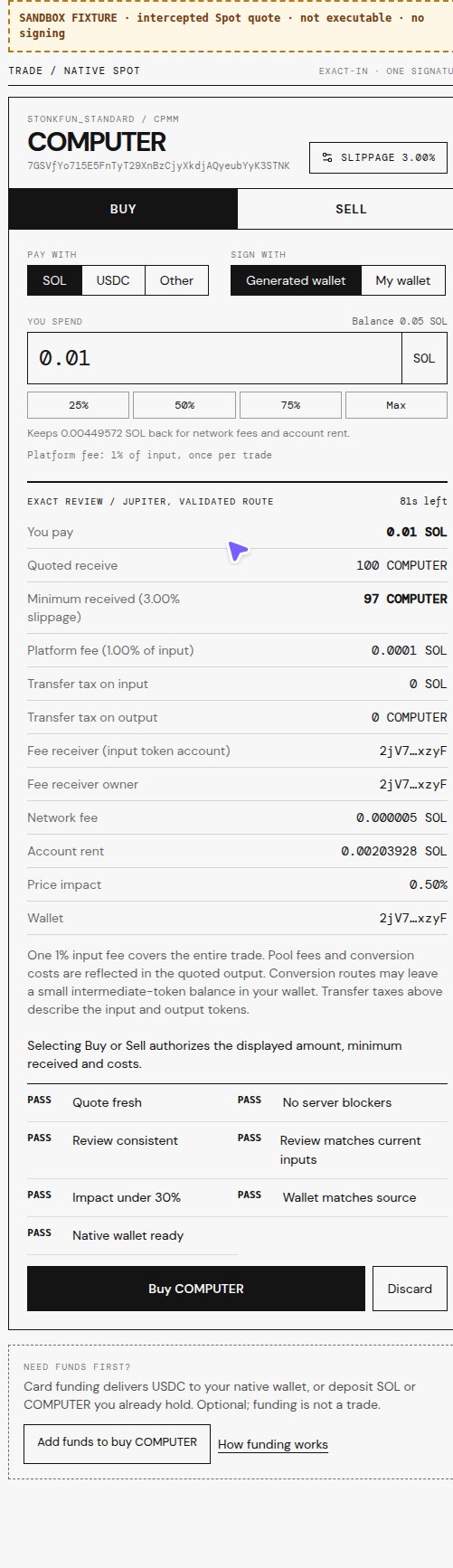
If you already hold SOL elsewhere, send it to your native deposit address on the Solana network. Each trade quote shows the exact network fee and rent it needs, then you buy from the token page.
Deposit COMPUTER directly
Already hold COMPUTER? Send it straight to your native address. No swap needed.
Send COMPUTER on Solana to your native deposit address. COMPUTER has a transfer fee, so the amount received can be lower than the amount sent. The launch holding check uses the amount received.
Card to USDC · Coming soon
Upcoming: fund with USDC, then swap to SOL and buy, one confirmation each. Card and Apple Pay checkout are currently disabled.
Card checkout is deferred. The planned flow uses native Solana USDC; direct SOL and COMPUTER checkout remain unverified. When enabled, confirmed USDC can be swapped to SOL and then COMPUTER, each with a fresh quote and explicit confirmation. For now, use the direct-deposit alternatives below.
Card and Apple Pay · Coming soon
USDC, then SOL, then COMPUTER.
Preview only — not currently available
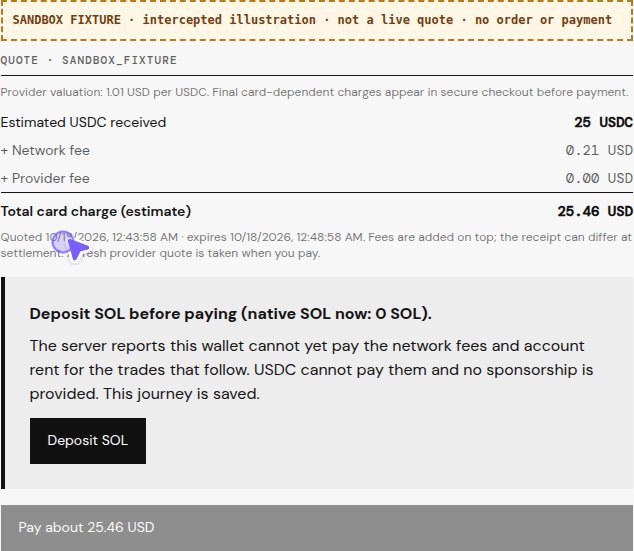
- Coming soon: card and Apple Pay checkout are deferred. These instructions and sandbox screenshots preview the upcoming flow; direct deposits remain available.
- When enabled, open Add funds from your wallet, a token page or the launch popup. The token and amount come with you.
- Enter the USDC you want to receive. The quote shows that estimate, each fee added on top, the total card charge and when the quote expires.
- Before paying for a buy or launch, the journey tells you if your native wallet needs SOL first. USDC cannot pay network fees or account rent and no sponsorship is provided. Each later trade quote shows its exact fee and rent.
- Pay in the embedded checkout. Any identity check happens there.
- Watch three separate stages until the finalized receipt appears.
- Continue: swap USDC to SOL with one confirmation. When that request confirms, return to the journey; step 2 opens the COMPUTER ticket prefilled with the minimum SOL that request guaranteed, or a SOL budget you enter. Each trade has its own fresh quote and confirmation.
Payment
The provider is processing your card. A pending payment is not a failure; do not pay again.
Delivery
The provider is sending USDC to your native wallet. Provider delivery alone does not mean funded.
Finalized receipt
The server confirmed the USDC credit on Solana at a finalized slot. Only this step means funded.
Prices move. Estimated receipt is not finalized delivery. COMPUTER transfers carry a transfer fee and each trade has its own costs and minimum received. New and reopened checkout are deferred in production and staging. Devnet is not mainnet value. Direct SOL or COMPUTER card checkout remains unverified. Existing orders may still require status checks and reconciliation; funding is never consent to a later trade.
Check status before trying again.
Payment declined
Check the final provider status and wallet receipt before trying again. A decline message alone does not prove that no payment or delivery occurred. New card checkout is currently deferred.
Unsupported region or asset
Card funding is not available everywhere. Use a deposit route instead.
Verification requested
In the planned card flow, provider verification happens in the embedded checkout. Do not send identity documents, keys or secrets through a help request. New checkout is not currently available.
Delivery pending
Payment and delivery are separate states. Check the existing journey and finalized wallet receipt; do not pay again while the outcome is pending or unknown.
Quote expired
Expiry alone does not prove a payment or submitted trade failed. Check its status first. Any later supported trade needs a fresh quote and explicit confirmation.
Order status unknown
Do not make a second payment. Check the existing journey or contact support with a non-sensitive journey reference. Existing reconciliation is separate from new checkout, which remains deferred.
A swap failed or its quote expired
Check the same trade request before quoting again. Confirmed wallet funds and unresolved trade/accounting state are different facts; do not re-sign or resend an unknown submission.
Optional live launch reference
Live terms are not embedded in this guide. Check the launch page before funding. Reference values may become stale and do not mean launching is open for you. Recheck the launch screen; exact costs and gates still govern.
Six steps.
Open your COMPUTER.EXE wallet and select Native.
Go to Account / Wallet. If you see a "Wallet to manage" selector, choose "Native — server-managed". The original Turnkey wallet is recovery only and is not used for new launches.
Open the Deposit tab. Deposits must show as Enabled before you send anything.
Copy your personal Deposit Address.
Press Copy Address, or scan the QR code on that tab. This address belongs to your native wallet only.
Never send to the COMPUTER token mint address. A mint identifies the token, not your wallet. Sending there can permanently lose funds.
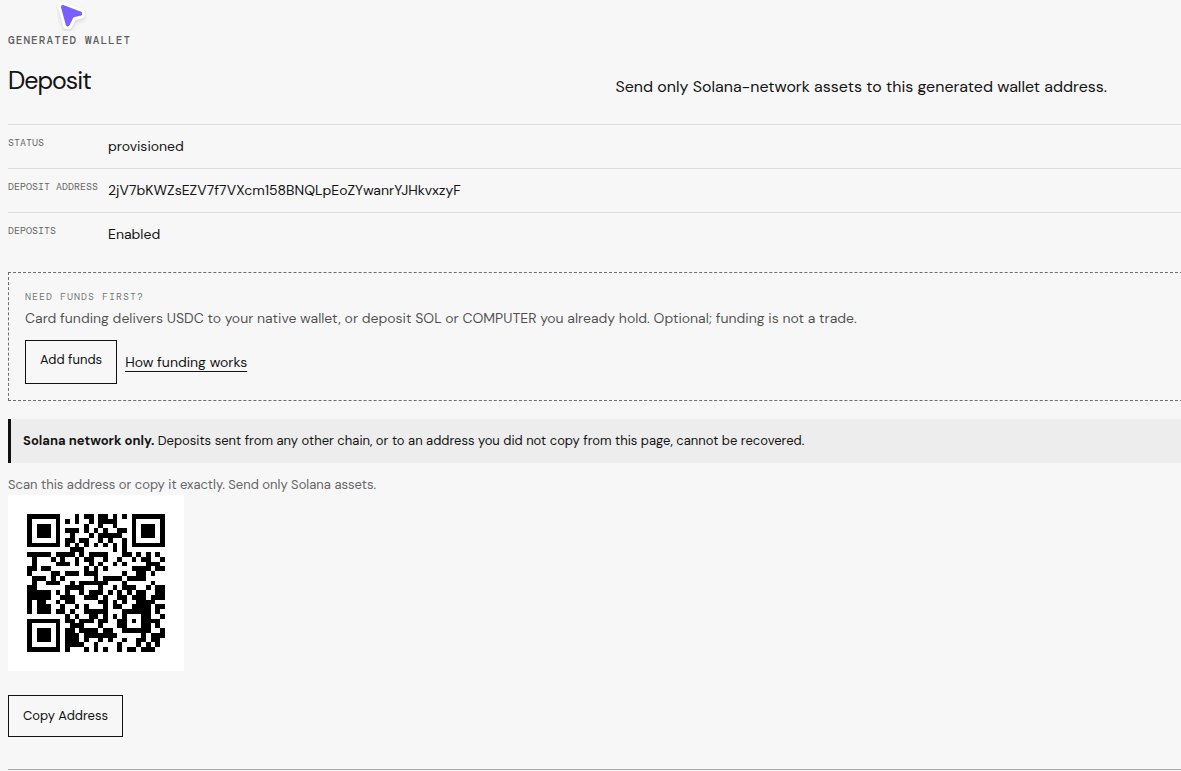
Sandbox example; your address will differ. Find your own address on Account / Wallet / Deposit. The token mint is never a deposit address. Send a small test first, on Solana.
In your outside wallet or exchange, select Solana. Paste your personal address and verify the destination before sending.
Wait for the small test to appear as confirmed in your native wallet Balances before sending the rest.
Keep SOL in the sending wallet for its own network fee.
Check net COMPUTER received against the current requirement.
COMPUTER has a transfer fee, so received units may be lower than sent units. Check the sending wallet fee and the confirmed received balance.
Compare that balance with the current launch screen holding requirement. Do not guess a top-up amount.
Supply SOL separately for reviewed costs.
COMPUTER is checked, not charged as the launch fee. SOL in the same native wallet pays service fees, account rent, network fees and any optional personal buy.
There is no fixed SOL target. Check exact costs on the launch review; USDC cannot replace SOL for gas and no fee sponsorship is promised.
Confirm both balances, then deliberately open launch.
Check confirmed COMPUTER and SOL in the selected native wallet. Reading this guide or opening launch does not authorize a transaction.
Keep COMPUTER at or above the current minimum until launch confirmation. Issuance and strategy activation are separate outcomes.
Solana network only. Sending on the wrong network or to the wrong address can permanently lose your funds. Always verify the destination before sending.
Your deposit address
Your personal deposit address is shown only on your wallet page. Sign in there if requested; no address is embedded in this guide.
Open wallet depositIs it the real COMPUTER?
Use this mint address to check your outside wallet is holding the genuine COMPUTER token.
COMPUTER token mint: 7GSVfYo715E5FnTyT29XnBzCjyXkdjAQyeubYyK3STNK
Not a deposit address. Do not send funds here.
Launch failed with HOLD_GATE?
That means the native launch wallet did not hold enough confirmed COMPUTER when checked.
- Fund the native wallet using the steps above.
- Wait until Balances shows the confirmed COMPUTER at or above the minimum.
- Open the same failed attempt in My launches. Only an unsigned failed attempt may use its allowed cancellation/release path. A cancellation request alone does not prove release or refund.
- Start a new launch only after the allowed release is confirmed. Existing legacy obligations keep their original terms.
Do not retry or resend a launch that was already submitted or confirmed. Check its status in My launches instead.